Switching to a new smartphone doesn't have to mean losing your contacts, photos, videos, messages, apps, or important files. Learn how Clone Phone makes phone-to-phone data transfer faster and easier across Android and iOS devices.
Introduction
Switching to a new phone can often feel like a daunting task, especially when it comes to transferring important data such as contacts, photos, videos, messages, and files. Manually moving all your information can be time-consuming and frustrating. Fortunately, a dedicated phone clone and data transfer app like Clone Phone simplifies the entire process, allowing you to transfer everything seamlessly from your old phone to new phone.
What Is Clone Phone?
Clone Phone is a versatile phone data transfer and file-sharing solution that allows users to easily Transfer data from one device to another Device. Unlike traditional cloud backup services, Clone Phone enables direct transfers between devices, making it more efficient for users who want to avoid lengthy upload and download times.
Why Do People Need a Phone Data Transfer App?
There are several situations where a phone data transfer app becomes essential:
Buying a new smartphone
Upgrading from an old device
Changing brands within the Android ecosystem
Switching between Android and iOS devices
Sharing large files with friends or family
Avoiding repetitive manual transfers
Key Features of Clone Phone
Clone Phone comes packed with useful features that make data transfer straightforward:
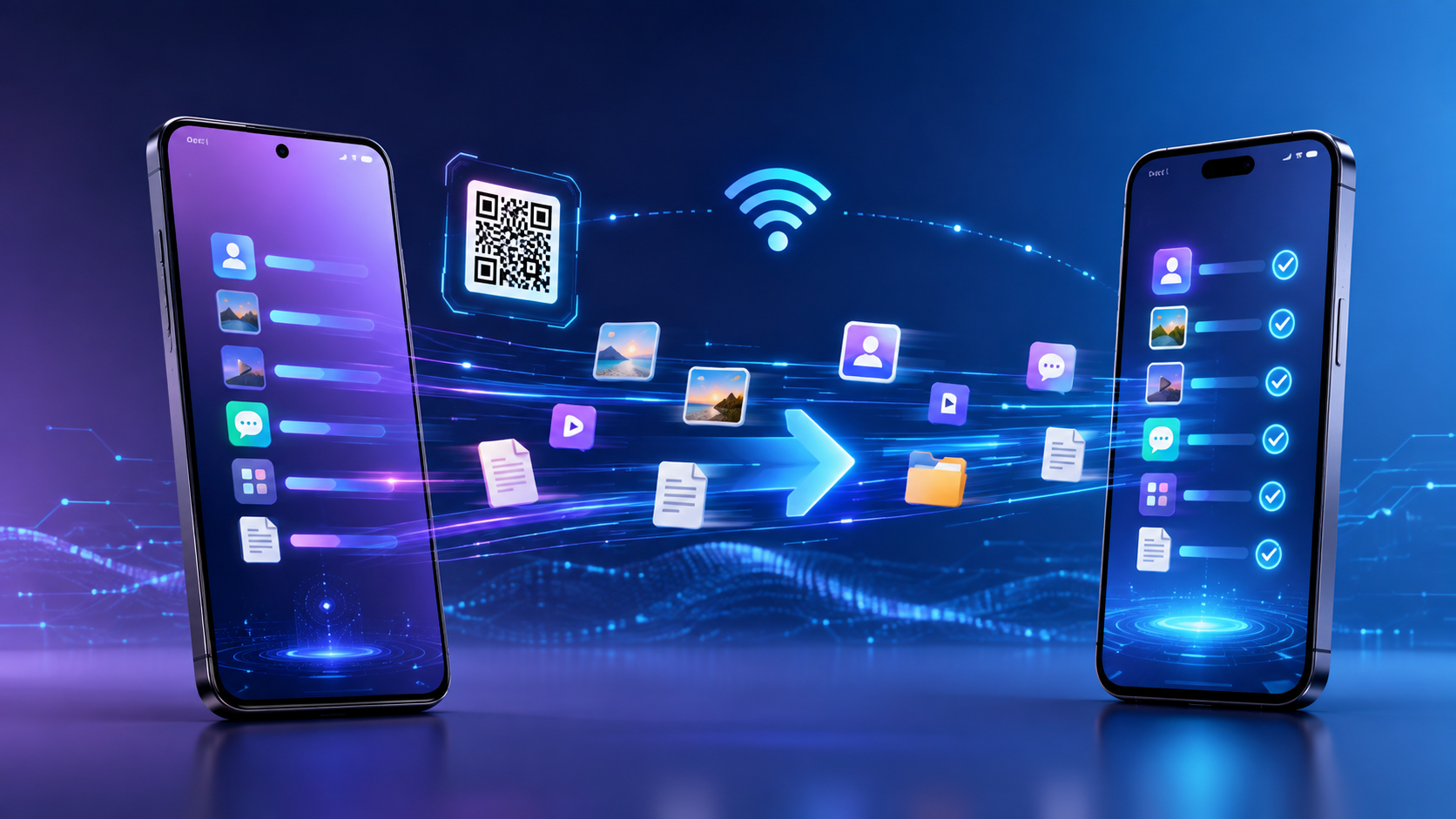
Phone-to-Phone Data Transfer
Transfer all types of data directly from one phone to another without the need for intermediary storage.
Android-to-Android Data Transfer
Easily migrate data between different Android devices, ensuring a smooth transition.
Android-to-iOS Data Transfer
Cross-platform support allows Android users to transfer data to iOS devices, where supported.
iOS-to-Android Data Transfer
Users switching from iOS to Android can move their data efficiently.
Transfer Contacts, Messages, Photos, and Videos
Clone Phone allows users to selectively transfer essential data types like contacts, messages, photos, and videos with ease.
Transfer Apps
Where supported, you can also migrate installed applications to your new device.
Wi-Fi Data Transfer
Utilize a stable Wi-Fi connection for faster data transfers without the need for cables.
Wireless/Local File Sharing
Share files easily with nearby devices using local connections.
QR-Code Connection
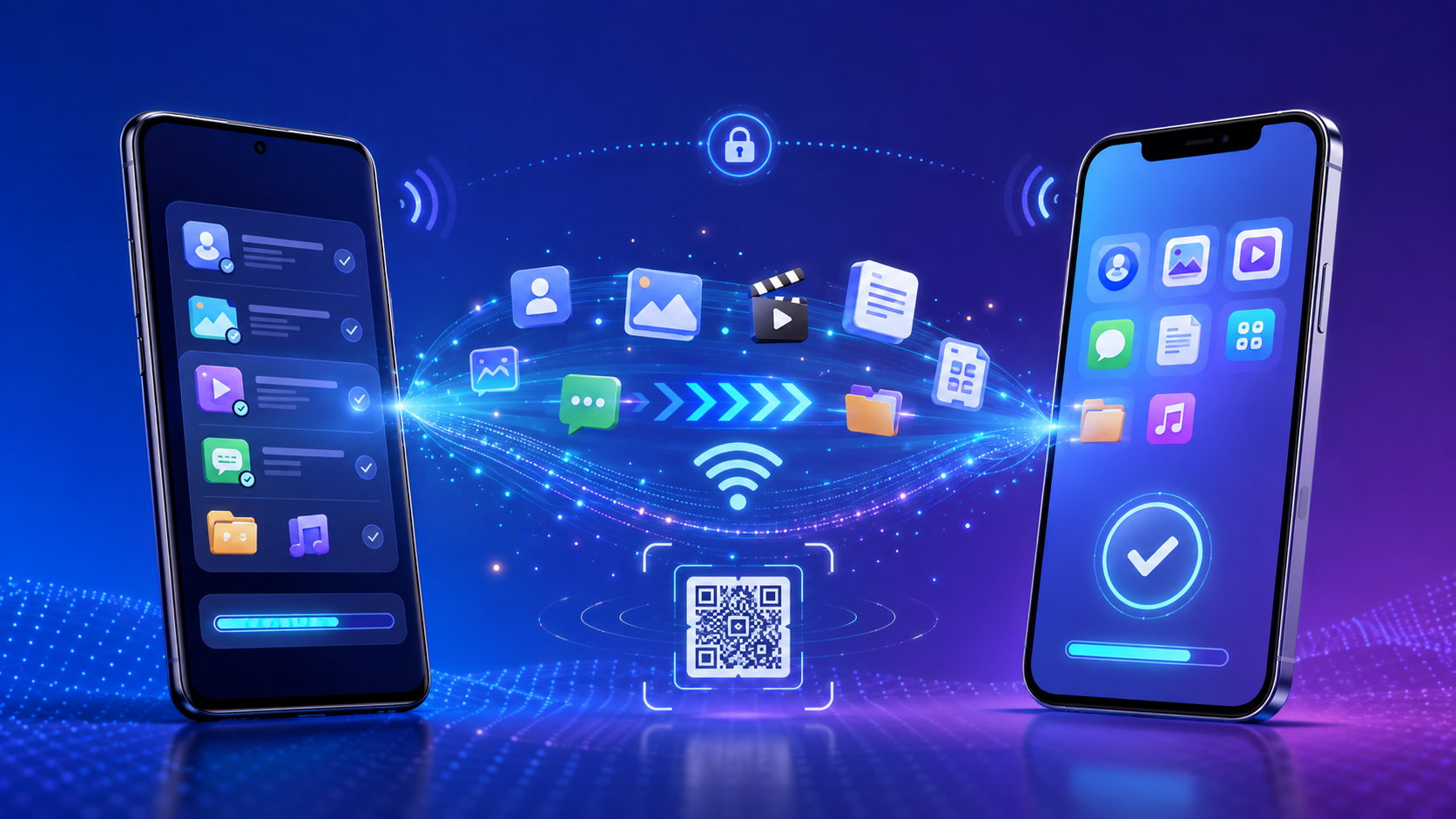
Quickly connect devices by scanning a QR code, streamlining the setup process.
Secure Data Transfer
Clone Phone ensures that your data is transferred securely, keeping your information safe during the process.
What Data Can You Transfer?
| Data Type | Transfer Use |
|---|
| Contacts | Move phonebook information to the new device |
| Photos | Transfer personal images |
| Videos | Move video files |
| Messages | Transfer supported messages |
| Apps | Help move installed applications where supported |
| Documents | Transfer PDFs, files and other documents |
| Music | Move supported audio files |
| Calendar | Transfer supported calendar information |
| Call Logs | Transfer supported call history |
Note that actual transfer support can vary based on operating systems, device manufacturers, app permissions, and platform restrictions.
Who Should Use a Phone Clone App?
Clone Phone is ideal for new-phone buyers, individuals upgrading smartphones, users transferring large media collections, and those who want a simpler alternative to manually moving files.
Conclusion
If you’re looking for a convenient way to transfer data between smartphones, exploring Clone Phone can save you time and hassle, allowing for an efficient and secure data migration experience.